How to optimise graphics settings for sim racing
Good sim-racing graphics settings are not simply about selecting Ultra. The real aim is to maintain a clear image and stable FPS when load is highest: full grids, race starts, rain, night driving or circuits with many objects. This tool calculates a starting point based on the processor, graphics card, resolution, screen count and monitor refresh rate. This helps you avoid both unnecessarily low quality and settings that are too demanding for your rig.
Select your CPU and GPU, indicate whether you use one screen, flat triple monitors, curved triple monitors or VR, and choose the profile that best reflects your priority. Competition aims for stability and visibility; Balanced maintains good quality without putting too much pressure on performance; Quality makes better use of powerful hardware. Always check the recommendation in difficult conditions, because performance can vary with the circuit, car count and simulator updates.
iRacing graphics settings to improve FPS
In iRacing, the processor can become the limit before the graphics card, especially with many visible cars, mirrors and dynamic shadows. If you notice drops at the start or when passing the pits, first reduce Max Cars, event detail, shadows and dynamic objects. Textures and anisotropic filtering generally depend more on the GPU and video memory, so they are not always the first settings to lower.
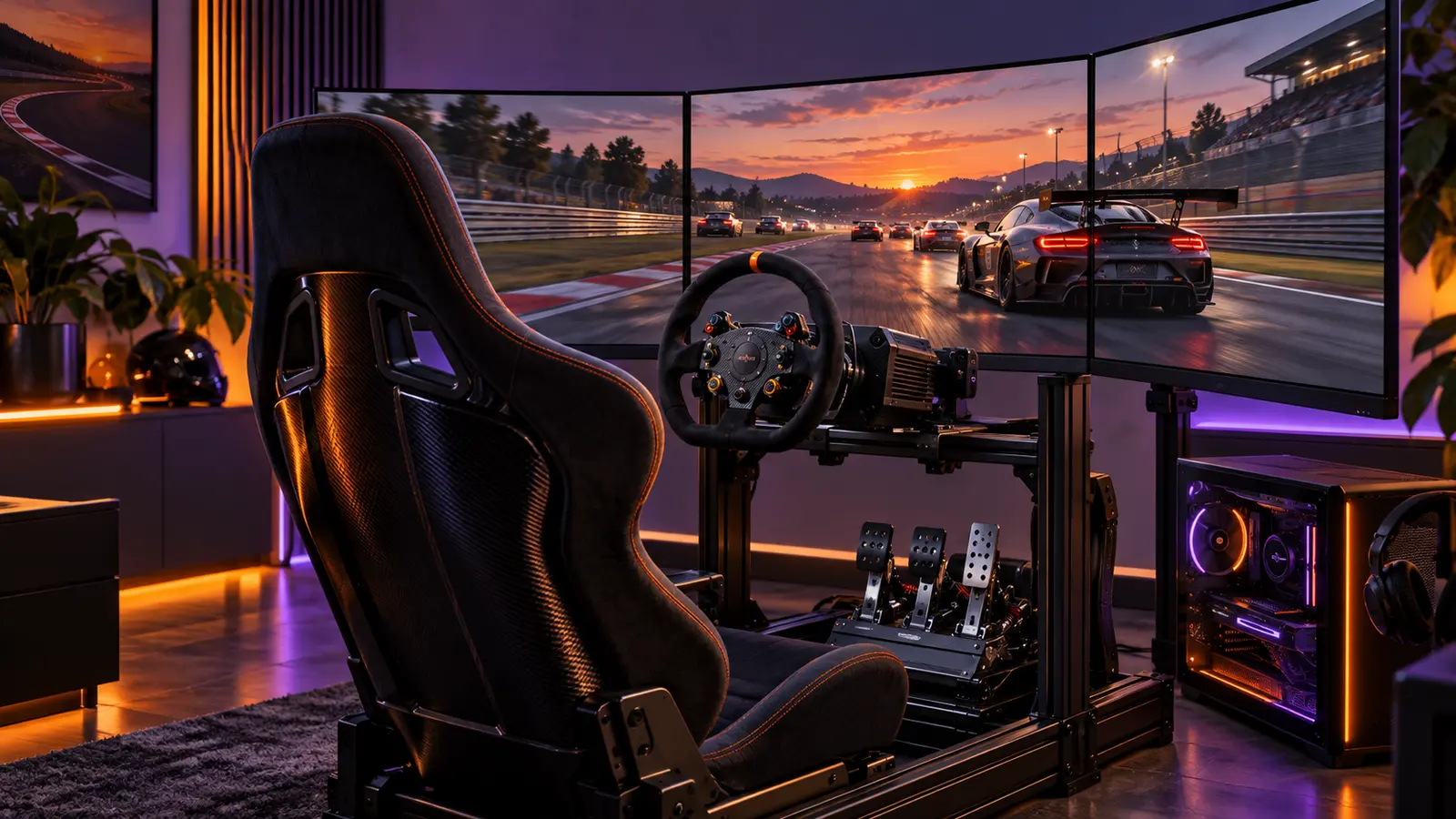
For triple monitors, the total resolution multiplies the graphics load. Three 1440p screens require many more pixels to be processed than one 1080p monitor. The calculator takes that difference into account and also shows useful physical data, such as monitor width, viewing distance and an indicative geometric FOV. In iRacing, enable triple projection where appropriate and finish adjusting the field of view with the simulator's internal tool.
ACC and Assetto Corsa EVO settings
Assetto Corsa Competizione and Assetto Corsa EVO place a different graphics load on the system from iRacing. Shadows, reflections, vegetation, post-processing effects and mirror resolution can reduce performance considerably. With a compatible GPU, DLSS or FSR in Quality mode are usually a good starting point for recovering FPS while retaining a clear image. If you still do not reach the target, lower reflections, shadows and the number of visible opponents before texture resolution.
Frame generation can increase the FPS counter, but does not replace a good base frame rate and may not be the best choice when you want the lowest possible latency. That is why Competition prioritises different settings from Quality. The tool also distinguishes NVIDIA and AMD GPUs to suggest the appropriate upscaling system where applicable.
Best settings for Le Mans Ultimate
Le Mans Ultimate's load can change considerably between a dry session and a race with rain, night conditions and many vehicles. Test the settings in a representative situation, rather than only on a solo lap. Post-processing effects, reflections, shadows, visible vehicles and mirrors are good candidates for adjustment if frame rates drop. Maintaining a stable rate generally makes driving more consistent than alternating between very high figures and sudden drops.
Assetto Corsa Rally graphics settings
The Rally profile provides a starting point by setting family: shadows, reflections, vegetation and clarity in motion. Names and availability can vary between early-access versions. Test the same stage and conditions after each change; do not use replay FPS as a driving reference. See the official 0.6 update.
How to adjust graphics for VR
Start with the headset's active refresh rate and the final resolution per eye. The available frame time is 1000 divided by Hz: at 90 Hz, it is 11.11 ms. Compare CPU and GPU times separately and leave headroom in demanding situations. If the GPU dominates, try lower resolution or fewer effects; if the CPU dominates, reduce cars, objects or scene complexity. These are tuning recommendations, not measurements of your system.
Avoid stacking several supersampling scales without checking the final resolution. Reprojection generates intermediate frames and can cause artefacts: check native performance first. For streaming headsets, also check the connection, encoding and latency; lowering graphics settings alone will not fix an unstable network. The calculator does not assign universal bitrates.
How many FPS do you need in a simulator?
As a practical reference, aim to approach your monitor's refresh rate if your hardware can maintain it consistently. A 144 Hz monitor is better used near 144 FPS, but a lower, stable figure can provide a cleaner experience than chasing the maximum with frequent stutters. If you use VR or triple monitors, the load increases and you may need to reduce some secondary effects to protect smoothness.
How to check that the settings are stable
After generating the recommendation, enter a session with traffic and test the start, pits and a demanding part of the circuit. Check minimum FPS, not just the average. If the limit appears to be the CPU, reduce visible cars, shadows and objects. If the GPU stays at full load, gradually lower reflections, antialiasing, effects and resolution scaling. Change one option at a time: this lets you identify which setting actually improves performance and retain as much quality as possible.